A good calendar should reduce scheduling work rather than create another system to manage. The best calendar apps now cover everything from simple appointments to automatic task planning. Your ideal choice depends on your devices, work tools, sharing needs, and budget. Also worth reading: Best Cell Phone for Business.
Quick answer: Google Calendar is the strongest free choice for most U.S. users. Outlook works especially well for Microsoft-centered workplaces, while Apple Calendar fits Apple households. Reclaim and Motion are stronger choices when you want software that actively protects or reorganizes your time.
| App | Best for | Free option | Standout strength |
|---|---|---|---|
| Google Calendar | Most people | Yes. | Simple sharing and broad compatibility |
| Outlook Calendar | Microsoft users | Yes. | Email and workplace integration |
| Apple Calendar | Apple households | Yes. | Strong Apple device integration |
| Notion Calendar | Notion users | Yes. | Projects and schedules in one view |
| Reclaim | AI time protection | Yes. | Automatic focus and habit scheduling |
| Motion | Automated task planning | Trial | Replans tasks around meetings |
| Fantastical | Apple power users | Yes. | Polished interface and fast event entry |
| TimeTree | Families and groups | Yes. | Shared group calendars |
Key Takeaways
- Google Calendar is our best all-around free pick for most individuals and small teams.
- Outlook makes the most sense when your workplace already depends on Microsoft 365.
- Apple Calendar remains hard to beat for households built around iPhones, iPads, and Macs.
- Notion Calendar suits people who want project deadlines beside normal appointments.
- Reclaim and Motion add active scheduling rather than simply displaying your commitments.
- TimeTree is worth considering when several people need one easy shared schedule.
Best Calendar Apps for 2026 Ranked by Use Case
No single scheduling tool wins every category because people manage time differently. Freelancers need different features than a family or corporate team. These eight options cover the most common needs for U.S. users.
1. Google Calendar: Best Overall for Most People
Google Calendar remains the easiest recommendation for people wanting a capable free scheduler. It works across browsers, Android devices, iPhones, and many connected services. Sharing, recurring events, invitations, reminders, and multiple calendars are straightforward.
Google also makes sense for businesses already using Gmail and Google Workspace. Workspace Business Starter currently begins at $7 per user per month with an annual commitment. Higher tiers add broader workplace features beyond scheduling.
Pros.
- Free for personal Google accounts
- Easy calendar sharing
- Works across major platforms
- Integrates with many scheduling services
- Familiar interface for most users
Cons.
- Advanced automatic planning is limited
- Business features may require Workspace
- Heavy users may want stronger task management
Google Calendar is the best overall choice for someone who wants dependable scheduling without learning a new workflow.
2. Microsoft Outlook Calendar: Best for Microsoft 365 Users
Outlook Calendar fits companies that already organize email and meetings through Microsoft services. Calendar functions sit close to Outlook mail, contacts, Teams meetings, and workplace accounts. That connection reduces the need to switch between separate business tools. The free Outlook experience handles normal personal scheduling needs.
Paid Microsoft 365 plans matter more for businesses that need centralized administration and workplace services. Teams using Microsoft products will usually gain more from Outlook than switching ecosystems.
Pros.
- Strong Microsoft 365 integration
- Useful for corporate meeting workflows
- Available across major devices
- Calendar and email work closely together
Cons.
- Can feel busy for simple personal planning
- Greatest benefits appear inside Microsoft environments
Remote teams may also benefit from Bussinify’s guide to work-from-home flexible hours. Scheduling policies work better when everyone understands availability expectations.
3. Apple Calendar: Best for Apple Households
Apple Calendar is a practical choice when everyone already uses Apple devices. Events can remain synchronized through iCloud across iPhone, iPad, Mac, and the web. Apple also supports private shared calendars with editing permissions. That simplicity is its biggest advantage. You don’t need another subscription for normal personal or household scheduling.
Mixed-device groups may find Google Calendar easier when Android users are heavily involved.
Pros.
- Included with Apple devices
- Simple iCloud synchronization
- Shared calendars support editing
- Clean integration with Apple software
Cons.
- Less attractive for mixed-device households
- Fewer advanced planning features than specialist tools
Apple’s documentation confirms that iCloud calendars can be shared with other users. Owners can choose whether invited people may change events.
4. Notion Calendar: Best for Notion Users
Notion Calendar is especially useful when your projects already live inside Notion. It brings work commitments and Notion database items into a unified planning view. Built-in scheduling links also reduce the need for a separate booking tool. The app currently supports Google Calendar, Outlook Calendar, and Apple iCloud-synced calendars. Desktop versions are available for macOS and Windows. Mobile apps are offered for both iPhone and Android.
Pros.
- Free to use
- Strong Notion connection
- Built-in scheduling links
- Useful time-zone tools
- Modern desktop experience
Cons.
- Best value appears for existing Notion users
- Not every Notion database workflow syncs directly with calendar events
Notion Calendar is a strong middle ground between a traditional scheduler and project planning software.
5. Reclaim: Best for Protecting Focus Time Automatically
Reclaim adds an intelligent planning layer to Google and Outlook calendars. It can schedule focus blocks, habits, buffers, meetings, and other priorities around existing commitments. The system then adjusts those blocks as your schedule changes. A free Lite plan is available for individual users.
Reclaim’s current Starter plan costs $12 per seat per month, while Business costs $18 per seat per month. Paid tiers expand scheduling ranges, integrations, calendar syncing, and team capabilities.
Pros.
- Free individual plan
- Automatic focus-time protection
- Google and Outlook support
- Useful habit scheduling
- Strong team scheduling options
Cons.
- Adds another layer to your existing calendar
- Teams may need paid plans for advanced controls
This option fits professionals whose main problem is finding protected work time. It does more than show appointments because it actively allocates time around them.
6. Motion: Best for Automatically Scheduling Tasks
Motion combines a calendar with tasks, projects, meetings, and automated planning. Its system prioritizes work and places tasks into available time based on deadlines. When plans change, Motion can rebuild the schedule. Motion currently lists its Pro AI plan at $19 per seat monthly with annual billing. Business AI costs $29 per seat monthly under the same billing option.
Those prices make it more suitable for users who will use its broader planning features.
Pros.
- Automatically places tasks on your schedule
- Replans work after changes
- Includes project and task management
- Available on mobile and desktop
Cons.
- More expensive than basic schedulers
- May be excessive for simple appointment tracking
People working toward demanding goals may also find Bussinify’s high achiever guide useful. Good software helps, but priorities and disciplined time use still determine results.
7. Fantastical: Best for Apple Power Users
Fantastical targets people who want more control than the basic Apple experience provides. Its polished interface and natural-language event creation make scheduling faster for frequent users. It also combines calendars, tasks, weather information, and meeting features. A free tier covers basic use, while paid Flexibits subscriptions add advanced capabilities.
Fantastical makes the most sense when calendar management is a key part of your day. Casual users may find Apple’s included app sufficient.
Pros.
- Attractive, polished design
- Fast event entry
- Useful for frequent schedulers
- Strong Apple-device experience
Cons.
- Premium features require payment
- Basic users may not need its extra controls
Fantastical is less about replacing your whole productivity system. Its strength is making frequent calendar work faster and more pleasant.
8. TimeTree: Best for Families and Shared Groups
TimeTree focuses on schedules that several people need to see and discuss. Users can create separate shared calendars for family, school, hobbies, or other groups. Filters help combine schedules or isolate one group. Core sharing features are available without a paid subscription. TimeTree currently lists Premium at $4.49 monthly or $44.99 annually in the United States. Premium removes ads and adds features such as attachments and prioritized events.
Pros.
- Designed around shared schedules
- Multiple group calendars
- Free core experience
- Works for families and small groups
Cons.
- Premium is charged separately
- Business-focused users may prefer Google or Outlook
TimeTree earns its place because family scheduling is different from office scheduling. Conversation and shared visibility matter more than corporate administration.
How to Choose the Right Calendar App
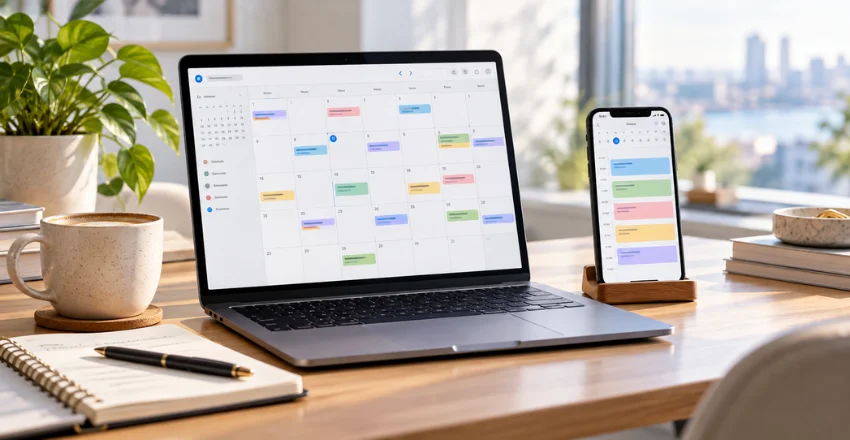
Start with the system you already use most. Google users should test Google Calendar first, while Microsoft workplaces should start with Outlook. Apple households should give the built-in option a fair trial before adding another subscription. Next, identify the problem your current setup fails to solve. Choose Reclaim when focus time keeps disappearing, or Motion when tasks constantly need rescheduling.
Choose TimeTree when several people mainly need shared visibility. Cost should come after that problem test. Free software is often enough when you need events, reminders, invitations, and simple sharing. Paid software becomes easier to justify when automation saves meaningful planning time each week. Elsewhere on the site: Simple Agreement for Future Equity.
Free vs. Paid Calendar Software
A free scheduler is usually enough for personal appointments, meetings, reminders, and basic sharing. Google, Apple, Outlook, and Notion all provide useful no-cost entry points. TimeTree also handles essential group scheduling without requiring Premium. Paying makes more sense when scheduling takes up a lot of time. Reclaim can automatically defend priorities, while Motion can place tasks around meetings and deadlines.
Fantastical charges for power-user features rather than basic event tracking. The smartest approach is to start with the simplest product that solves your problem. Add automation only after you can name the friction it removes. That prevents another productivity subscription from becoming unused software.
Our Verdict
For most people, Google Calendar remains the safest first choice because it is free and widely supported. Outlook wins for Microsoft-centered companies, while Apple Calendar fits households committed to Apple devices. Notion Calendar deserves consideration when planning and project information already live inside Notion.
Reclaim is our preferred choice for professionals wanting automatic focus protection. Motion fits people who want tasks actively placed around meetings and deadlines. TimeTree is the strongest option for families whose main concern is a shared schedule.
Your calendar should support decisions, not just collect appointments. Pick one tool, use it consistently for several weeks, and remove features you don’t need. You can also pair better scheduling with Bussinify’s business podcast recommendations for productive learning time.
Frequently Asked Questions
What are the best calendar apps for most people?
Google Calendar is the strongest starting point for most users because it is free and widely compatible. Apple Calendar is excellent inside Apple households, while Outlook suits Microsoft users. Advanced users may prefer Reclaim, Motion, or Fantastical.
What is the best free calendar app?
Google Calendar is our top free choice for general use. It provides sharing, invitations, recurring events, reminders, and access across common platforms. Apple Calendar is equally compelling when all your devices already use Apple’s ecosystem.
Which calendar is best for small businesses?
The answer depends on your company’s existing productivity suite. Google Calendar fits Google Workspace teams, while Outlook fits Microsoft 365 organizations. Businesses needing meeting tools can also review Bussinify’s free conference call services.
Are AI calendars worth paying for?
They can be worthwhile when manual planning consumes time every week. Reclaim protects focus blocks and habits, while Motion can rebuild task schedules after changes. They offer less value when you mainly record appointments.
What should I look for before switching calendars?
Check device support, sharing permissions, integrations, pricing, and migration options first. Confirm that coworkers or family members can use the same setup easily. A feature-rich product still fails if nobody wants to maintain it.